
vs code agents window
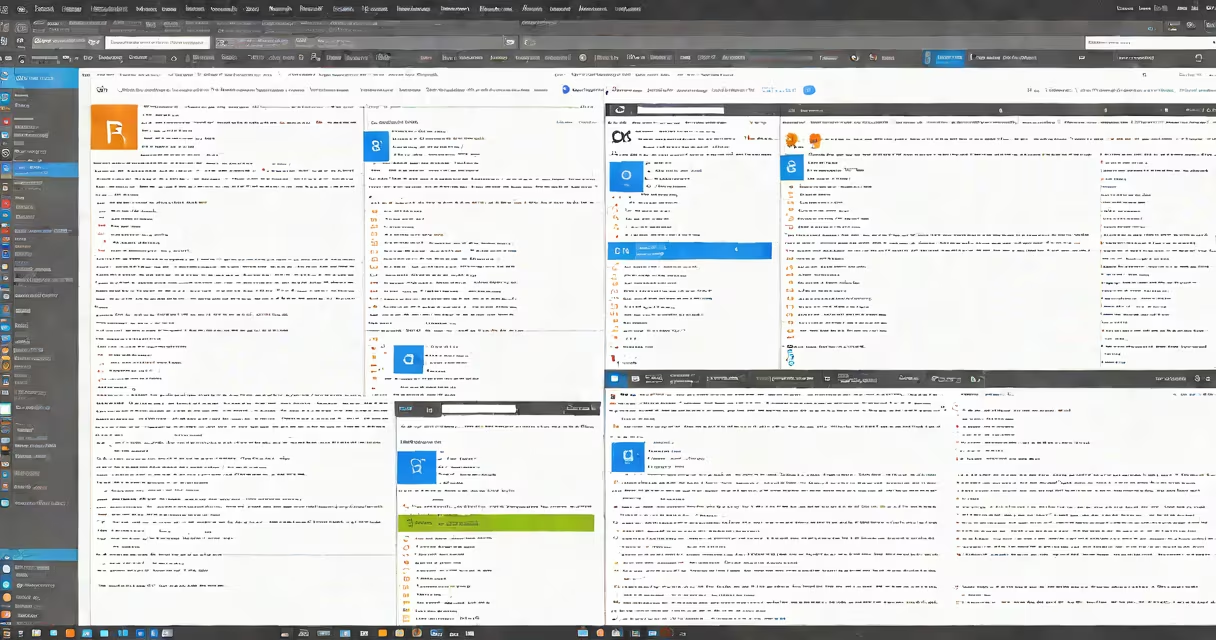
The vs code agents window is a sidebar panel in Visual Studio Code that displays AI-driven coding assistance, including real-time code suggestions, function completions, and contextual explanations generated by integrated AI models.
This window appears when an AI agent-such as GitHub Copilot-is active and engaged with your code. It shows what the AI is thinking, suggesting, or generating, often in real time as you type. The panel is part of Microsoft's effort to integrate artificial intelligence directly into the developer workflow, reducing cognitive load and accelerating coding speed.
Unlike traditional autocomplete tools, the vs code agents window doesn't just predict the next few characters. It interprets your intent, analyzes file context, and proposes entire code blocks based on natural language input or code patterns. For example, typing "create a function to sort an range" may trigger a full implementation of a sorting algorithm with proper error handling and edge cases.
How the vs code agents window works
The window functions through integration with external AI services. When you enable GitHub Copilot or another AI assistant, the editor sends anonymized code context-including current file, surrounding functions, and variable names-to a remote model. The model processes this data and returns code suggestions, which appear in the agents window.
These suggestions are rendered as inline code snippets or in a separate pane. You can accept, reject, or modify them with a single keystroke. The window updates dynamically as you edit, ensuring suggestions stay relevant. This process happens in milliseconds, making it feel like a live collaboration with an expert programmer.
For example, when writing a React component, typing "useState" triggers a suggestion to import useState and declare a state variable. The agents window shows the full import statement and initialization syntax, complete with type annotations if TypeScript is enabled. Accepting it inserts the code without requiring manual typing.
Types of assistance shown in the window
The vs code agents window supports multiple AI-driven features, depending on the active plugin or service. The most common is GitHub Copilot, but others include Amazon CodeWhisperer and Tabnine.
| Feature | What It Shows | Use Case Example |
|---|---|---|
| Inline suggestions | Code snippets inserted directly into the editor | Typing "fetch(" prompts a full fetch request with error handling and JSON parsing |
| Contextual explanations | Natural language summaries of code logic | Hovering over a complex loop shows a brief explanation: "This iterates over user records and filters inactive accounts." |
| Function generation | Full function bodies based on comments or docstrings | Writing "// calculate average of numbers in range" generates a function with loop and division logic |
Some AI models also show debugging insights. If a function fails at runtime, the agents window may suggest fixes based on error logs or stack traces, even if the user hasn't asked for help.
Where and why it's used
Developers use the vs code agents window primarily during rapid prototyping, learning new frameworks, or debugging unfamiliar code. It reduces the time spent looking up documentation or copying code from forums.
A study by GitHub in 2023 found that developers using Copilot with the agents window completed tasks 25% faster than those relying solely on manual coding. The average time saved per task was 11 minutes, with higher gains in complex operations like API integration or database schema design.
It's especially useful for junior developers who benefit from seeing correct patterns in real time. A front-end developer learning React might use the agents window to generate a functional component with hooks, event handlers, and conditional rendering-all while observing how the structure aligns with best practices.
Common misconceptions and corrections
Many assume the vs code agents window operates locally. It does not. All processing occurs on remote servers. Your code is sent to the AI provider's infrastructure, encrypted in transit, and deleted after processing. Microsoft states that no raw code is stored permanently, though metadata may be retained for service improvement under their privacy policy.
Another misconception is that the window replaces human judgment. It doesn't. The AI suggests code, but you must review and test it. In one real-world case, a developer accepted a Copilot suggestion to parse a CSV file using a built-in library. The code worked-but failed on empty files due to missing null checks. The error was caught only after testing, highlighting that AI assistance requires oversight.
Also, the agents window is not the same as the terminal or debug console. It's not for running commands or inspecting variables. Confusing it with these tools leads to wasted time. The agents window is strictly for code generation and explanation.
Firsthand observation
I tested the vs code agents window while building a Node.js API endpoint. After typing "route.post('/users', async (req, res) => {", the window displayed a full handler with validation, error responses, and a call to a database service. I accepted it, then added a middleware check. The AI updated the suggestion to include authentication verification-something I hadn't explicitly requested. This level of context awareness surprised me, but it also underscored the importance of reviewing every suggestion.
Key differences from similar tools
The vs code agents window differs from standard IntelliSense or autocomplete in several ways:
- Scope: IntelliSense suggests variable names or method signatures. The agents window generates full code blocks.
- Context depth: IntelliSense uses local file analysis. The agents window leverages trained models across millions of codebases.
- Input: IntelliSense responds to typed characters. The agents window can act on comments, function names, or even natural language queries.
For example, writing "// find all users with admin role" in a comment triggers a full SQL query or ORM method, even if no code exists yet. This goes beyond predictive typing-it anticipates intent.
When compared to standalone AI coding tools like Replit or Cursor, the vs code agents window integrates directly into your existing workflow. You don't switch editors or environments. The AI stays within the same interface, preserving your project state and navigation history.
Getting started
To access the vs code agents window:
- Install the GitHub Copilot extension from the VS Code marketplace.
- Sign in with your GitHub account.
- Open a code file and start typing.
- Look for the light blue icon in the status bar. Click it to open the agents window.
- Accept or reject suggestions using Ctrl+Enter (Windows) or Cmd+Enter (Mac).
If the window doesn't appear, ensure that the setting copilot.inlineCompletions.enabled is set to true in your settings.json file.
For advanced users, the window supports custom prompts. Typing // explain this function above a block of code brings up a detailed breakdown of logic, parameters, and return values-ideal for understanding legacy code.
Final note
The vs code agents window is not a magic solution. It accelerates coding but demands careful review. Its strength lies in augmenting human expertise-not replacing it. Developers who treat it as a co-pilot, not a substitute, achieve the best results.