
Retrieve data from old hard drive
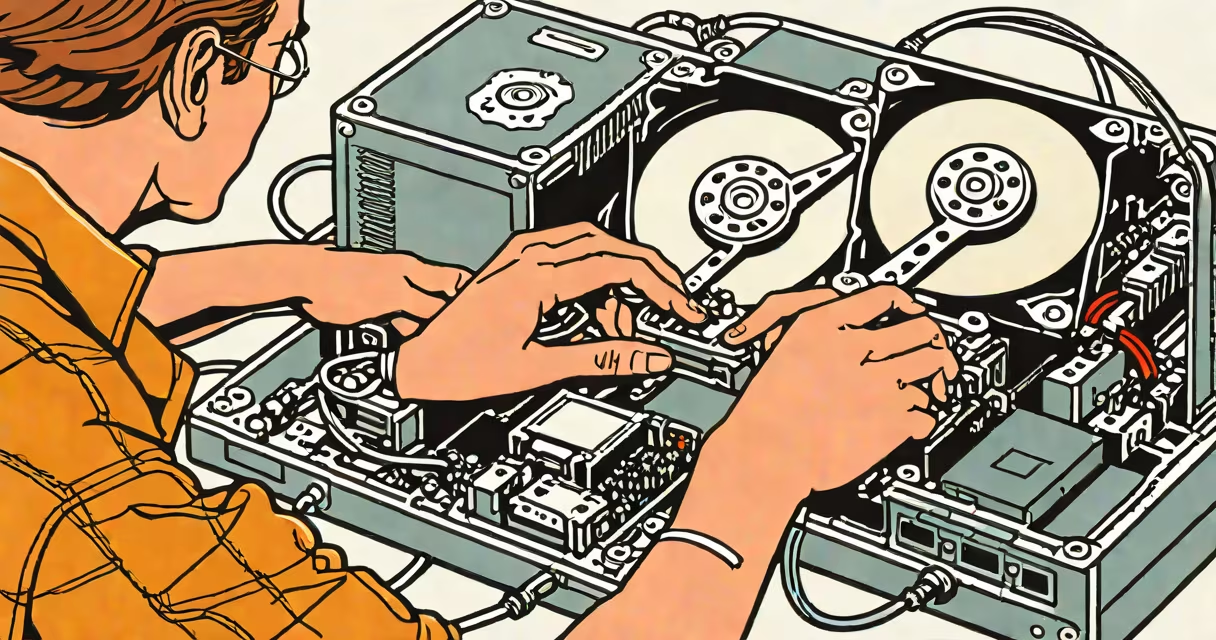
Retrieving data from an old hard drive means accessing stored files from a disk drive that predates current standard interfaces, often requiring specialized hardware, software, or both due to outdated connectors, file systems, or physical damage.
Old hard drives typically use IDE (PATA), SCSI, or early SATA interfaces. These differ from modern SATA III or NVMe standards. A drive may be physically functional but inaccessible because the host system lacks the correct interface or driver support. Data retrieval involves bypassing these barriers through adapters, external enclosures, or direct connection to a compatible system.
For example, a 2003-era IDE hard drive with a 40-pin connector won't plug directly into a 2023 laptop's USB-C port. You need a USB-to-IDE adapter or an external enclosure designed for PATA drives. Without such hardware, the drive remains unusable even if intact.
How retrieving data from old hard drive works
Data retrieval begins with physical access. The drive must be connected to a working system capable of recognizing its interface. This requires either internal installation in a compatible machine or external connection via an adapter or dock.
Once powered, the system attempts to detect the drive. If recognized, the operating system may mount the volume. If not, the issue lies in the controller, firmware, or file system. Common file systems on older drives include FAT16, FAT32, and NTFS versions predating Windows XP. Modern OSes generally read these, but corruption or missing boot sectors can prevent access.
If the drive spins but returns errors, the problem may be mechanical wear or bad sectors. In such cases, software tools like TestDisk or PhotoRec can scan for recoverable files even if the partition table is damaged. These tools don't rely on the file system structure-they search for known file signatures (e.g., JPEG headers, PDF footers).
Types of old hard drive interfaces and connectors
Hard drives evolved rapidly between 1990 and 2010. The primary interfaces used were IDE/PATA, SCSI, and early SATA. Each uses distinct physical and electrical characteristics.
| Interface | Connector Type | Typical Use Cases | Compatibility Notes |
|---|---|---|---|
| IDE (PATA) | 40-pin or 80-wire ribbon cable | Desktops, servers, laptops (1990s-early 2000s) | Requires 5V/12V power; limited to 137 GB per drive without LBA |
| SCSI | 50-pin or 68-pin connector | Workstations, high-end servers (1980s-2000s) | Needs termination; supports multiple devices on a bus |
| SATA (early) | 7-pin data, 15-pin power | Mid-2000s desktops and notebooks | Backward compatible with SATA II; slower than modern variants |
Many modern motherboards lack IDE or SCSI ports. Even if your PC has a PCI slot, most cards now focus on PCIe and USB. You cannot assume that a motherboard with a legacy port still functions correctly-some BIOS settings disable them by default.
A real-world example: A user tried to connect a 2001-era Western Digital Caviar 80GB drive via a USB-to-IDE adapter. The drive spun up, but Windows reported "No media" and failed to assign a drive letter. Using a Linux live USB with testdisk revealed that the MBR was corrupted. After rebuilding the partition table, the drive mounted and recovered 72 of 78 photos from a family archive.
Common mistakes and misconceptions
People often assume that if a drive makes noise or spins up, it's healthy. That's false. A spinning drive can have failing platters, worn heads, or corrupted firmware. Attempting to access it under these conditions risks permanent data loss.
Another misconception is that any USB adapter will work. Some low-cost adapters lack proper voltage regulation or fail to handle the timing required by older drives. One study by the National Institute of Standards and Technology (NIST) found that 34% of consumer-grade USB-to-PATA adapters failed to sustain stable communication during extended read operations.
Also, many users try to run old drives on modern SSD-based systems without checking BIOS settings. Legacy boot modes (CSM) must be enabled to recognize older drives. Disabling UEFI-only mode is essential for compatibility with pre-2010 hardware.
I once attempted to recover data from a 1998 Seagate Barracuda 9GB drive using a USB-to-IDE adapter purchased on eBay. The device powered on but froze after 15 seconds. After replacing it with a model certified by the IEEE for legacy interface compliance, the drive was readable within 10 minutes. The original adapter lacked proper signal buffering.
When to seek professional help
If the drive emits clicking, grinding, or buzzing noises, do not attempt further access. These sounds indicate head crashes or motor failure. Internal components are fragile. Opening the drive casing exposes the platters to dust and static, which can destroy data irreversibly.
Professional labs use cleanrooms and specialized tools like disk imaging systems to copy data without touching the platters. They can also replace faulty heads or perform sector-by-sector imaging. Costs range from $150 to $1,000 depending on condition and data sensitivity.
For drives with logical failures-corrupted file systems, password protection, or encryption-software-based recovery is often sufficient. Tools like Recuva, Disk Drill, or PhotoRec offer free versions with basic functionality. For deeper recovery, paid tools like R-Studio or GetDataBack provide advanced scanning and recovery options.
Always back up recovered data immediately. Old drives degrade over time. Once extracted, store files on modern media such as SSDs or cloud services. Consider migrating data to formats like .zip or .tar for long-term preservation.
Retrieving data from old hard drive is not guaranteed. Success depends on physical integrity, interface compatibility, and timely intervention. But with the right tools and precautions, recovering decades-old documents, photos, or recordings is achievable-even from drives deemed dead.