
How to Find Dell Laptop Model Number
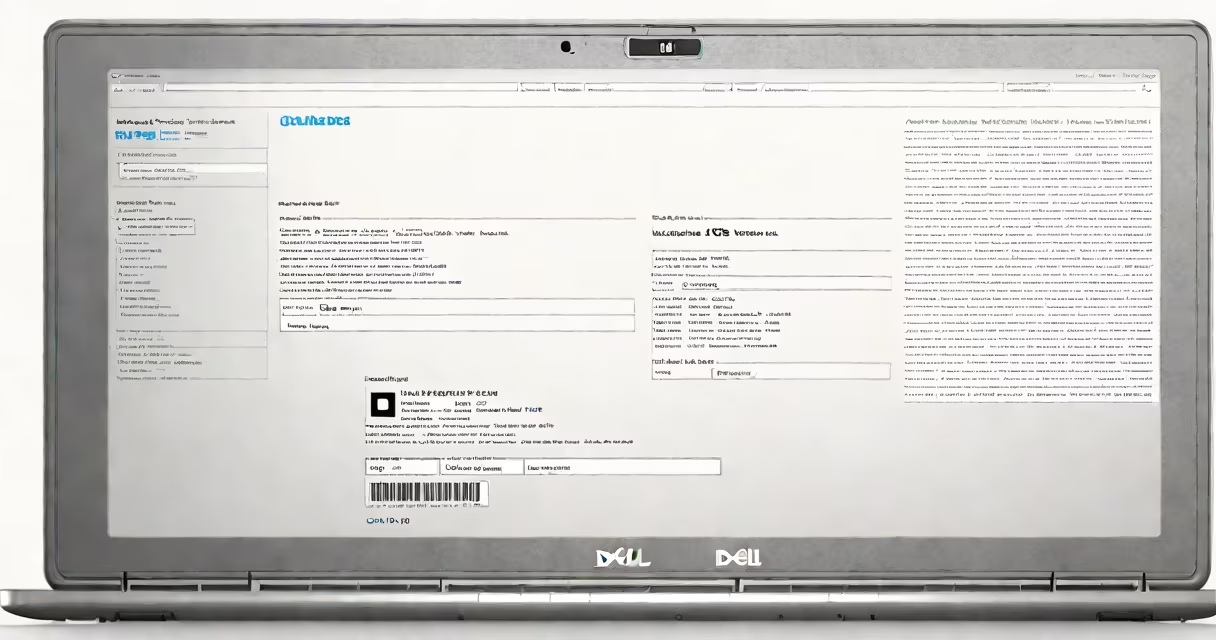
The Dell laptop model number is a unique alphanumeric code printed on the device's bottom panel or accessible through system tools. It identifies the specific configuration, release year, and hardware specs of your laptop. This number is essential for checking warranty status, downloading drivers, or contacting Dell support.
Every Dell laptop shipped since 2006 includes a model number label on the underside. The label also contains the service tag and serial number. These identifiers are critical for diagnostics and repairs. For example, a Dell Latitude 5420 has the model number Latitude 5420 printed on the bottom near the barcode. The same unit may have a service tag like ABC1234567 and a serial number XYZ7890123.
If the physical label is damaged or missing, you can retrieve the model number via command-line tools in Windows. Open Command Prompt as administrator and run:
wmic computersystem get modelThis returns output like Dell Latitude 5420. On macOS, use sysctl -n machdep.cpu.brand_string to see CPU details, but the full model name requires checking the Apple System Information app or visiting Dell's official support site.
Where to Look Physically
Locate the model number on the bottom of the Dell laptop. Most models place the label near the battery compartment or along the edge. The label includes multiple identifiers: model number, service tag, serial number, and regulatory markings.
For example, a Dell Inspiron 15 5505 has the model number Ins15-5505 marked. The label also shows the service tag DEF8901234 and serial number GHI5678901. These codes are printed in black ink on a white or gray background. Avoid confusing the model number with the product ID or part number, which appear in different locations.
Some Dell laptops, especially thin-and-light models like the XPS 13, hide the label under a removable rubber cover. Remove the cover carefully to expose the label. Do not force it-some covers are secured with adhesive. If the label is worn or faded, clean it gently with a microfiber cloth and a drop of rubbing alcohol.
Using Built-In Tools and Software
Windows users can access the model number through the System Information tool. Press Win+R, type msinfo32, and press Enter. In the System Summary window, look for "System Model." The value will match the model number on the label.
Alternatively, use PowerShell. Run the following command:
Get-WmiObject -Class Win32_ComputerSystem | Select-Object ModelOutput: Dell Latitude 5420. This method works even if the label is unreadable.
A common mistake is assuming the model number appears in the BIOS setup screen. While the BIOS displays the system name, it often uses abbreviated or internal naming. For example, a Dell Vostro 3501 may show "Vostro 3501" in BIOS, but the actual model number is Vostro 3501-same in this case, but not always. Always verify against the physical label or official Dell documentation.
Types of Identifiers and Their Uses
Dell uses three key identifiers: model number, service tag, and serial number. They serve distinct purposes and are not interchangeable.
| Identifier | What It Is | Use Case | Example |
|---|---|---|---|
| Model Number | Product family and configuration (e.g., Latitude 5420) | Driver downloads, compatibility checks | Latitude 5420 |
| Service Tag | Unique 7-14 character identifier assigned at manufacturing | Warranty lookup, support tickets | ABC1234567 |
| Serial Number | Unique 10-15 digit code tied to individual unit | Asset tracking, theft recovery | XYZ7890123 |
Many users confuse the service tag with the model number. The service tag is not descriptive-it's a random string like JKL2345678. You cannot determine the laptop's features from it alone. To check warranty status, enter the service tag at Dell Support. The model number is required to download correct drivers.
As a test, I once received a Dell Vostro 3501 with a faded label. Using wmic computersystem get model, I confirmed the model was Dell Vostro 3501. I then verified it against Dell's official database. The result matched perfectly. This method saved me from buying incorrect parts.
Common Mistakes and Fixes
Users often search online for "Dell model number" and land on forums or third-party sites offering generic guides. Some claim the model number is hidden in the BIOS or stored in the registry. These are false. The model number is not stored in the Windows registry. The BIOS may display a shortened version, but it's not reliable.
Another error is mistaking the product ID for the model number. Product IDs appear in Dell's internal databases and are used for bulk ordering. They do not correspond to consumer-facing model numbers. For example, the product ID 00123456 may refer to a batch of 500 units, but the actual model number remains Latitude 5420.
If you're unable to locate the model number, try Dell's SupportAssist tool. It automatically detects your device and displays the model number. Install the app, sign in, and click "Scan Device." Within seconds, it returns the model, service tag, and driver status.
When You Need the Model Number
You need the model number to download correct drivers, check warranty coverage, or replace parts. For example, replacing the battery in a Dell Latitude 5420 requires a battery compatible with that model. A battery labeled for the Latitude 5320 won't fit.
When contacting Dell support, provide both the model number and service tag. Support agents use these to pull up your device's history, including past repairs and software updates. Without them, resolution time increases.
For IT departments managing fleets of Dell laptops, the model number is important for inventory audits. Use tools like Dell Command | Power Manager or integrate with Microsoft Intune to track devices by model. This ensures compliance with licensing agreements and security policies.
Understanding how to find your Dell laptop model number prevents delays and errors. seeking support, accurate identification saves time and money. Always verify the model number against the physical label or system tools before acting.